Right, so over the last couple of days, I've been making an mp3 player, let's start out with an image.
I had great fun writing this program, it really got me hooked at times, and I'd not notice as the time passed by, I guess that what music can do to you.
It's a splash screen that has some information, like the name of the program, and who it's been made by.
Making a splash screen is very simple, and to make the program know that you have a splash screen, all you have to do is go to the application settings and you can apply your splash screen.
I made this splash screen in Photoshop, didn't take me very long, and i've a novice with photoshop, so everyone should be able to do it.
Next, there is the main screen, this is where you play the music from, you can import songs to your playlist, turn the volume up and down, save and load your playlist. Also you have two buttons in the top right corner, one button (x) will close down the program and show the end splash (will be shown later), the other button (_) will minimize the application to the system tray, and wont fill up your bar at the bottom.
I've made most of this Mp3 player with the WMP object already implemented into the .Net framework, and then I created all the art with Photoshop, I had to get a lot of help from people who made other Mp3 players, especially This Link helped me quite a lot, I had a lot of problems with 2 things, one being the load/save playlist function, and the other being minimize to the tray, the rest of it actually just a walk in the park, all you need to know is the commands to operate the WMP objects, and you are set.
I made it so that the only file extension that can be used is Mp3, I could easily make more extensions use able, but I chose to only make it Mp3, cause if I added the extensions it wouldn't really be a Mp3 Player, but a Music player!
The Now Playing screen will be displayed whenever a track is being played, here you can see the song name and artist, and you can use the search bar to find your favorite moments of your songs, so you wont have to listen all the boring parts.
The now playing screen, consists of 4 things, a background, 2 labels and a track bar, 1 labels to display the song name and 1 to display the artist.
And as you might have guessed, the track bar lets you change to where ever you want in the song.
And here is the end splash screen, which shows when you close the program, thanking you for using the program. Again, this was made with photoshop.
To make the splash show at the end, all I had to do was make it appear, and then with a timer, shut down again, in this case 3500 milliseconds or 3,5 seconds later.
Thanks for reading.
Rasmus Iversen
Monday, 28 February 2011
Tuesday, 15 February 2011
How to make the computer talk
Making a computer talk is actually a simple matter, you start of by going to Project > Add Reference then you click the System.Speech and add it.
Now you have to go to your forms code, and ABOVE Public Class Form1 you write Imports System.Speech
Under Public Class Form1 you write:
Public Synth as New.SpeechSynthesizer
Now you create a button, and under it you write:
synth.speak("Hello world")
and that's it! If you run your program and click the button, you will hear your program say "hello world".
-Rasmus Iversen
Now you have to go to your forms code, and ABOVE Public Class Form1 you write Imports System.Speech
Under Public Class Form1 you write:
Public Synth as New.SpeechSynthesizer
Now you create a button, and under it you write:
synth.speak("Hello world")
and that's it! If you run your program and click the button, you will hear your program say "hello world".
-Rasmus Iversen
Monday, 14 February 2011
My day.
Today's been pretty straight forward, I've been doing a little programming, adding a new feature to my first game, I've been writing a couple of posts in my blog, and then I moved my pc around the office.
To my first game, i added it so, that you can choose between which numbers you want the random number to be, so the standard is 1-100, but if you want, you can now set it to 1-100000 or 25000-1248943 if you want.
Well as for the blog posts, you can read them yourself, bear in mind, that i am not completely finished with The Turing Test, and i will be finishing it tomorrow.
Moving my "desk" around the office, i turned my desk, so that my uncle can see my screen while i am working, makes it easier for him to make sure i'm not doing any funny business.
But that's about all i have for you today.
-Rasmus Iversen
The Turing Test
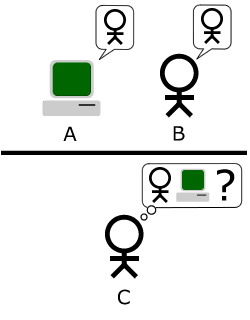
The Turing test is a test, that tests a computers intelligence, it is done by having 1 person and a computer in one room, and and 1 person in another, the person who's alone is going to engage in a normal conversation between the 3 parts, and is going to try and determine who's the computer and who's the real person, it is said, that if he can't determine who is who, then the computer has passed.
Here's a picture that might explain it better.
Source
-Rasmus Iversen
Here's a picture that might explain it better.
Source
-Rasmus Iversen
Presentation of my Chatbot
Lately I've been working on a very simple chatbot, and so far it's going pretty good, I've "taught" it to do math, tell time, Google search and more.
Here's a picture!
Making the chatbot itself is not so hard, here's some of the code:
Private Sub TellTime()
ListBox1.Items.Add(("Chatbot: the time is: ") & System.DateTime.Now.ToString("HH:mm:ss"))
synth.Speak(("the time is: ") & System.DateTime.Now.ToString("HH:mm:ss"))
End Sub
I'm gonna just take a line or two at a time.
question = txtInput.Text.To.Lower.Trim
This line takes the text in txtInput and puts it in the variable question in lower case and with no double spaces.
Listbox1.Items.Add("User: " & question)
Writes the users question in the Listbox1.
Here's a picture!
Making the chatbot itself is not so hard, here's some of the code:
question = txtInput.Text.ToLower.TrimListBox1.Items.Add("User: " & question)
If question.IndexOf("what's the time") > -1 ThenTellTime()End If
Private Sub TellTime()
ListBox1.Items.Add(("Chatbot: the time is: ") & System.DateTime.Now.ToString("HH:mm:ss"))
synth.Speak(("the time is: ") & System.DateTime.Now.ToString("HH:mm:ss"))
End Sub
I'm gonna just take a line or two at a time.
question = txtInput.Text.To.Lower.Trim
This line takes the text in txtInput and puts it in the variable question in lower case and with no double spaces.
Listbox1.Items.Add("User: " & question)
Writes the users question in the Listbox1.
If question.IndexOf("what's the time") > -1 Then
TellTime()
End If
Checks if the variable question contains the sentence "what's the time", and if it does, then it opens the Sub routine TellTime()
ListBox1.Items.Add(("Chatbot: the time is: ") & System.DateTime.Now.ToString("HH:mm:ss"))
Adds the Chatbots answer to the listbox, System.DateTime.Now.ToString("HH:mm:ss") is the time to show the time.
synth.Speak(("the time is: ") & System.DateTime.Now.ToString("HH:mm:ss"))
This makes the Chatbot actually speak, however this requires you to add a reference, i'll make a post about it later.
Here's another picture!
This picture shows how the Google search works, if you want to search as I'm feeling lucky all you have to do, is instead of writing "tell me all about" then just type "tell me about", and it'll do a i'm feeling lucky search.
That's all i have for you this time.
-Rasmus Iversen
Friday, 11 February 2011
The simple AI of my game!
The AI in my game is very simple, basically what it does, is that it adds two variables (Imin and Imax) together and then divides them by 2, i'm going to write the algorithm and the code, and then explain as best as i can.
Algorithm:
(imin + imax) / 2 = guess
Code:
If intImax = 0 Then
intImax = 100
End If
If intImin = 0 Then
intImin = 1
End If
If intNumberOfGuesses = 0 Then
AIguess = 50
Else
AIguess = Int((intImin + intImax) / 2)
End If
Okay i'll take one bit at a time.
Algorithm:
(imin + imax) / 2 = guess
Code:
If intImax = 0 Then
intImax = 100
End If
If intImin = 0 Then
intImin = 1
End If
If intNumberOfGuesses = 0 Then
AIguess = 50
Else
AIguess = Int((intImin + intImax) / 2)
End If
Okay i'll take one bit at a time.
If intImax = 0 Then
intImax = 100
End If
what happens here is that if intImax is zero it'll be set to 100
If intImin = 0 Then
intImin = 1
End If
and here the same happens with Imin but it's set to 1.
If intNumberOfGuesses = 0 Then
AIguess = 50
these 2 lines of code tells the program that if it's the first guess of the game, then the A.I should guess 50.
Else
AIguess = Int((intImin + intImax) / 2)
End If
and here if it isn't the first guess of the game, the program runs the algorithm.
But that doesn't work, if it keeps running this algorithm, it'll keep guessing, so we need to keep changing Imin and Imax, here's the code that does this for us.
Select Case result
Case "Lower"
If Guess < gintImax Or gintImax = 0 Then
gintImax = Guess
End If
Case "Higher"
If Guess > gintImin Then
gintImin = Guess
End If
So here again i'll take one bit of code at a time.
Select Case result
Case "Lower"
If Guess < gintImax Or gintImax = 0 Then
gintImax = Guess
End If
Here if a guess is lower then the random number, it says that if the guess is lower then Imax or if Imax is 0, then set the Guess to Imax.
Case "Higher"
If Guess > gintImin Then
gintImin = Guess
End If
Here it's pretty much the same, but with a few alterations, this code is activated if the guess is higher then the random number, what it does is, if the guess is larger then Imin, then set Imin to the guess.
And it's that simple.
-Rasmus Iversen
My first game - Presentation.
So i thought i'd give a small presentation of the first game i made, it's called Guess a number.
I guess i'll start off by showing the Main Menu! Well here it is!
Very simple, it's here that you can choose what you want to do.
Next, the singleplayer screen!
As you can see, it looks almost exactly like the singleplayer, but as you can see in the guess list, there's also a computer player!
Next the Highscore list!
Very simple, it shows the names and scores of the top players! Also has a reset button, which obviously, resets the highscores!
Last but not least, there's the credits screen!
Basically a little info about the creators.
And that's that!
-Rasmus Iversen
I guess i'll start off by showing the Main Menu! Well here it is!
Very simple, it's here that you can choose what you want to do.
Next, the singleplayer screen!
Just a quick note on what's on it, there's a button called New Game, an OK button, and also a Main Menu button, they all kind of explain themselves, but just for the fun of it here's a description.
New Game button:
Starts over a new game, and resets the Guesses and Guess count!
OK button:
Submits your guess!
Main Menu button:
Returns you to the Main Menu!
Next, the Multiplayer screen!
The first screen you see, when you press the multiplayer button is the "who starts" screen, here you choose who starts, you are the A.I.
As you can see, it looks almost exactly like the singleplayer, but as you can see in the guess list, there's also a computer player!
Next the Highscore list!
Very simple, it shows the names and scores of the top players! Also has a reset button, which obviously, resets the highscores!
Last but not least, there's the credits screen!
Basically a little info about the creators.
And that's that!
-Rasmus Iversen
Wednesday, 9 February 2011
The For Next loop
I'll start off with an example:
Dim answer As Integer
Dim startNumber As Integer
answer = 0
For startNumber = 1 To 4
answer = answer + startNumber
Next startNumber
For startNumber = 1 To 4
answer = answer + startNumber
Next startNumber
MsgBox(answer)
What this will do is add the numbers 1 to 4, without having to write 1+2+3+4, i mean those few numbers aren't gonna take long to write down, but what about 100 numbers?
It's basicly saying answer(0) plus startnumber(1) and making the result answer(1), so next loop is answer(1) plus startnumber(2) = answer(3) and so forth! :D
Next
For intCount As Integer = 4 To 62 Step 7
listbox.items.add(intCount)
Next
Now what does the step 7 do?
First we see what the loop does without the step 7.
It takes the numbers from 4 to 62 and lists them in the listbox,
now with the step 7, it only takes every seventh number and adds
to the listbox, so instead of going 4, 5, 6 and so forth it goes,
4, 11, 18 and so forth.
Next
For intCount As Integer = 4 To 62 Step 7
listbox.items.add(intCount)
Next
Now what does the step 7 do?
First we see what the loop does without the step 7.
It takes the numbers from 4 to 62 and lists them in the listbox,
now with the step 7, it only takes every seventh number and adds
to the listbox, so instead of going 4, 5, 6 and so forth it goes,
4, 11, 18 and so forth.
For intCount As Integer = 4 To 62 Step 7
listbox.items.add(intCount)
if intcount = 18 then
exit for
end if
Next
Now as you can see, i added an If statement, and what i told it do,
is if intcount is 18 then it must run the command "Exit For",
which very simply, exits the loop and stops at 18.
is if intcount is 18 then it must run the command "Exit For",
which very simply, exits the loop and stops at 18.
-Rasmus Iversen
The IF, ELSEIF, ELSE statements
The If statement is a way of saying If this is activated, then do this, and if it isn't like that then do this so like this.
If randomnumber = 2 then
MsgBox("The random number = 2")
ElseIf randomnumber = 3 then
MsgBox("The Random number = 3")
Else
MsgBox("the randomnumber is neither 2 or 3")
End If
So basicly what i made the program do is tell me if the random number is 2, 3 or none of them.
Very simple, but they can get very complicated, you can also call other subs or functions from the If statements
exampel:
If textbox1.text = "Hello World" then
HelloWorld()
Elseif
textbox1.text = "Goodbye World" then
GoodbyeWorld()
End If
So yea with If statements, there are a lot possibilities!
-Rasmus Iversen
If randomnumber = 2 then
MsgBox("The random number = 2")
ElseIf randomnumber = 3 then
MsgBox("The Random number = 3")
Else
MsgBox("the randomnumber is neither 2 or 3")
End If
So basicly what i made the program do is tell me if the random number is 2, 3 or none of them.
Very simple, but they can get very complicated, you can also call other subs or functions from the If statements
exampel:
If textbox1.text = "Hello World" then
HelloWorld()
Elseif
textbox1.text = "Goodbye World" then
GoodbyeWorld()
End If
So yea with If statements, there are a lot possibilities!
-Rasmus Iversen
Why am I here?
Why did i travel the 3500 km from Denmark to Portugal? And why am i not in school?
I guess i'll tell you a bit of my lifes story!
I've for 2 years now, been too lazy to go school, and then this christmas i wanted to go on vacation here in portugal, and i made my mother call my uncle, and after the conversation my mom came and told me "you are not comming home from portugal", and i was like "what?! o0", and so thereafter i moved here, and it's that simple, and now i am "Studying" programming, and it's all going fairly well!
-Rasmus Iversen
I guess i'll tell you a bit of my lifes story!
I've for 2 years now, been too lazy to go school, and then this christmas i wanted to go on vacation here in portugal, and i made my mother call my uncle, and after the conversation my mom came and told me "you are not comming home from portugal", and i was like "what?! o0", and so thereafter i moved here, and it's that simple, and now i am "Studying" programming, and it's all going fairly well!
-Rasmus Iversen
Functions, what’s the difference?
So, what's the difference between a function, and a sub routine?
The difference between a sub and a function is this: Funtions return a value, Subs don't.
Substring() is a Function, because you want some sort of answer back, and an answer that you can then use elsewhere. You assign the answer to the Substring() function to a variable.
A Sub is some code or job that you want VB to get on with and execute. An example is closing a form down and unloading it with Me.Close(). You don't need to return a value, here; you just want VB to close your form down.
-Rasmus Iversen
The difference between a sub and a function is this: Funtions return a value, Subs don't.
Substring() is a Function, because you want some sort of answer back, and an answer that you can then use elsewhere. You assign the answer to the Substring() function to a variable.
A Sub is some code or job that you want VB to get on with and execute. An example is closing a form down and unloading it with Me.Close(). You don't need to return a value, here; you just want VB to close your form down.
-Rasmus Iversen
Sub Routines
What is a sub routine?
A sub routine is where you write your code, here's an example on how to write a sub routine, and then how you call it.
Private sub HelloWorld()
MsgBox("Hello World")
End Sub
And here's how you would call it.
Private Sub Button1_Click(ByVal sender As System. _
Object, ByVal e As System.EventArgs) Handles Button1.Click
Call HelloWorld()
End Sub
It's very simple, sub routines are very nifty, writing our code in there makes it a lot easier to see the difference in the code, instead of us having to write all our code under the individual buttons.
-Rasmus Iversen
A sub routine is where you write your code, here's an example on how to write a sub routine, and then how you call it.
Private sub HelloWorld()
MsgBox("Hello World")
End Sub
And here's how you would call it.
Private Sub Button1_Click(ByVal sender As System. _
Object, ByVal e As System.EventArgs) Handles Button1.Click
Call HelloWorld()
End Sub
It's very simple, sub routines are very nifty, writing our code in there makes it a lot easier to see the difference in the code, instead of us having to write all our code under the individual buttons.
-Rasmus Iversen
Visual Basic
Visual Basic, is a programming language which operates within the .NET framework, it's supposed to be a very good language for beginner programmers, while it still has a lot of depth. Well here's a cut from wikipedia:
Visual Basic (VB) is the third-generation event-driven programming language and integrated development environment (IDE) from Microsoft for its COM programming model. Visual Basic is relatively easy to learn and use.
Visual Basic was derived from BASIC and enables the rapid application development (RAD) of graphical user interface (GUI) applications, access to databases using Data Access Objects, Remote Data Objects, or ActiveX Data Objects, and creation of ActiveX controls and objects. Scripting languages such as VBA and VBScript are syntactically similar to Visual Basic, but perform differently.
A programmer can put together an application using the components provided with Visual Basic itself. Programs written in Visual Basic can also use the Windows API, but doing so requires external function declarations.
The final release was version 6 in 1998. Microsoft's extended support ended in March 2008 and the designated successor was Visual Basic .NET (now known simply as Visual Basic).
Source: http://en.wikipedia.org/wiki/Visual_Basic
There's not really any better way of describing it!
-Rasmus Iversen
Visual Basic (VB) is the third-generation event-driven programming language and integrated development environment (IDE) from Microsoft for its COM programming model. Visual Basic is relatively easy to learn and use.
Visual Basic was derived from BASIC and enables the rapid application development (RAD) of graphical user interface (GUI) applications, access to databases using Data Access Objects, Remote Data Objects, or ActiveX Data Objects, and creation of ActiveX controls and objects. Scripting languages such as VBA and VBScript are syntactically similar to Visual Basic, but perform differently.
A programmer can put together an application using the components provided with Visual Basic itself. Programs written in Visual Basic can also use the Windows API, but doing so requires external function declarations.
The final release was version 6 in 1998. Microsoft's extended support ended in March 2008 and the designated successor was Visual Basic .NET (now known simply as Visual Basic).
Source: http://en.wikipedia.org/wiki/Visual_Basic
There's not really any better way of describing it!
-Rasmus Iversen
Who's the boss? My uncle's the boss!
Yea as the title says, i work for my uncle, or at least, i'm being taught by him, he's been living in portgual for around 20 years, but living with him is a lot different then living back in denmark with my mom, back home i'd have a lot more free time, and there was almost discipline, but with him it's up running in the morning, and then working from 8 a.m to 7 p.m.
My uncle is a programmer through 20 years, and knows a lot of different programming languages, and he's giving me lots of ideas and lots of help with VB .Net, although he said he wouldn't have time to help me all the time, he's almost always helping me anyways.
-Rasmus Iversen
My uncle is a programmer through 20 years, and knows a lot of different programming languages, and he's giving me lots of ideas and lots of help with VB .Net, although he said he wouldn't have time to help me all the time, he's almost always helping me anyways.
-Rasmus Iversen
The office, what's it like?
The office I work at is located in costa do sol, just outside of Lisbon, in carcavelos, the office is located inside my uncle's home, so i don't have very far to walk when i go to work!
The office is not very big, however we are going to be moving into a bigger room one of these next days.
What do we have in the office?
Well, first of all we have two computers, there's mine, and there's my uncles, 3 monitors, 1 for me, 2 for my uncle, my uncles laptop and his Ipad, and a whiteboard.
We also have a laptop more in here that we don't use atm, it's the one i used to use, untill i recieved my PC.
-Rasmus Iversen.
The office is not very big, however we are going to be moving into a bigger room one of these next days.
What do we have in the office?
Well, first of all we have two computers, there's mine, and there's my uncles, 3 monitors, 1 for me, 2 for my uncle, my uncles laptop and his Ipad, and a whiteboard.
We also have a laptop more in here that we don't use atm, it's the one i used to use, untill i recieved my PC.
-Rasmus Iversen.
Monday, 7 February 2011
Life.... In machine form.
Greetings!
I'm back, over the last couple of days I've been writing more of my Artificial intelligence, it's getting better and better by the day, now it's learned to search on google, both for a specific result, and for showing a lot of results, and also if it doesn't understand what you are telling it, it will search google for that question, and if you are lucky, it'll find the result for you!
So far i'm pretty satisfied with the way it's going, been getting a lot of help from my uncle, but i'm deffinetly getting better by the day!
So tomorrow, i'm gonna be focusing on getting it to show pictures and also tell me the weather!
It's going to be a lot of fun!
-Rasmus Iversen
I'm back, over the last couple of days I've been writing more of my Artificial intelligence, it's getting better and better by the day, now it's learned to search on google, both for a specific result, and for showing a lot of results, and also if it doesn't understand what you are telling it, it will search google for that question, and if you are lucky, it'll find the result for you!
So far i'm pretty satisfied with the way it's going, been getting a lot of help from my uncle, but i'm deffinetly getting better by the day!
So tomorrow, i'm gonna be focusing on getting it to show pictures and also tell me the weather!
It's going to be a lot of fun!
-Rasmus Iversen
Wednesday, 2 February 2011
So talking to a computer.
Right, i've today and yesterday been working on a talking program, it's obviously very basic and can't say very much!
All i've managed to make it do, is tell the time and do math :D
Anyways, i don't really feel like i can write so much today cause nothing interresting has happend, except for the fact that i've been runing this morning lol!
-Rasmus Iversen.
All i've managed to make it do, is tell the time and do math :D
Anyways, i don't really feel like i can write so much today cause nothing interresting has happend, except for the fact that i've been runing this morning lol!
-Rasmus Iversen.
Subscribe to:
Comments (Atom)